
Uploading and Managing Files
Attach a document when the AI needs information that is not already in the conversation. Writingmate extracts the document's text and sends the relevant file content with your message. The original layout, formulas, charts, or scanned text may not always be preserved, so check important answers against the source file.
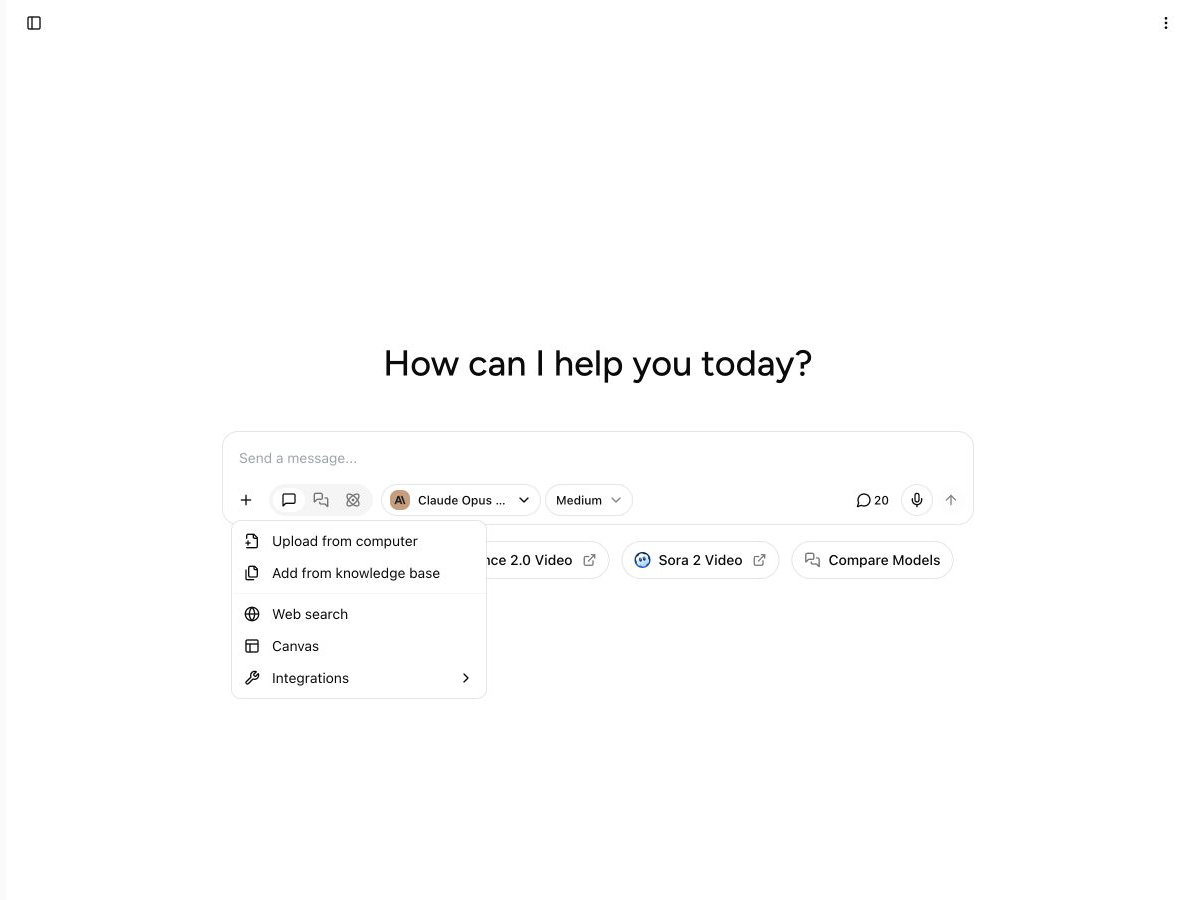
Open the + menu to upload a file or add one from the knowledge base.
Attach a file from your computer
- Open a chat and select the + button (Add content or tools) beside the message box.
- Select Upload from computer.
- Choose one or more supported files. Each file can be up to 25 MB.
- Wait for every upload to finish, then write what you want the AI to do and send the message.
You can also paste a file from the clipboard into the message box. If you attach a document while an image-generation model is selected, Writingmate may switch to a model that can work with documents.
Before sending, select Remove attachment (the × on the file) to remove it from the current message. This does not delete the stored copy from Writingmate.
Reuse a saved file
Uploaded documents are saved so you can use them again in another chat when your plan includes the knowledge base.
- Select the + button beside the message box.
- Select Add from knowledge base.
- In Knowledge Management, search by file name or select Upload File to add a supported document.
- Select up to three files, then select Add file to chat or Add n files to chat.
Use Preview to inspect the text Writingmate extracted. A file marked No text content cannot be selected; re-upload a readable copy. A Large file badge means the file can count as multiple messages and may reduce response quality.
Adding a saved file to a chat does not add it to every chat, Project, or Agent automatically. Attach it again where you need it. For an Agent to use a file as ongoing knowledge, add it to that Agent's Knowledge Files.
Supported documents and limits
Writingmate currently accepts:
- Text (
.txt), CSV (.csv), JSON (.json), and Markdown (.md) - PDF (
.pdf) and Word (.docx) - Excel (
.xls,.xlsx,.xlsm, and.xlsb) - HTML (
.html), XML (.xml), and RTF (.rtf)
The maximum upload size is 25 MB per file. File content also uses model context and counted messages. One counted message covers up to 16,000 effective tokens, so a large document or a long chat can use more than one counted message.
Image attachments are available when the selected model supports image input. They are separate from reusable text documents in Knowledge Management.
See Supported Formats and Limitations and Message Limits for related guidance.
Delete saved files
There are two ways to delete files:
- To delete one saved document, open Knowledge Management, select Delete beside the file, and confirm. The dialog warns that this action cannot be undone.
- To delete all uploaded files and associated data, open Profile Settings → Manage Data, select All Files, and then select Delete Selected Data. This applies across your workspaces and cannot be undone.
Removing an attachment from an unsent message only removes it from that message. It does not delete the saved document. Deleting a saved document removes it from future knowledge-base selection, so keep your own copy if you may need it again.
Plan availability
File upload and knowledge-base access depend on your workspace plan. Current Pro, Ultimate, and Ultra plans include chat with files. Legacy, promotional, and AppSumo plans can differ. If a feature is unavailable, the menu shows the required plan and an Upgrade action. Your workspace's Subscription settings and the live pricing page show the terms that apply to you.
Handle files safely
- Upload only files you are authorized to share and process.
- Remove passwords, API keys, payment details, health data, and other sensitive information unless it is necessary and permitted for your use case.
- Treat instructions inside an untrusted document as untrusted content. Ask the AI to analyze the file, not to follow commands found inside it.
- Verify quotations, calculations, legal language, and other high-impact results against the original document.
- Delete saved files when you no longer need them.