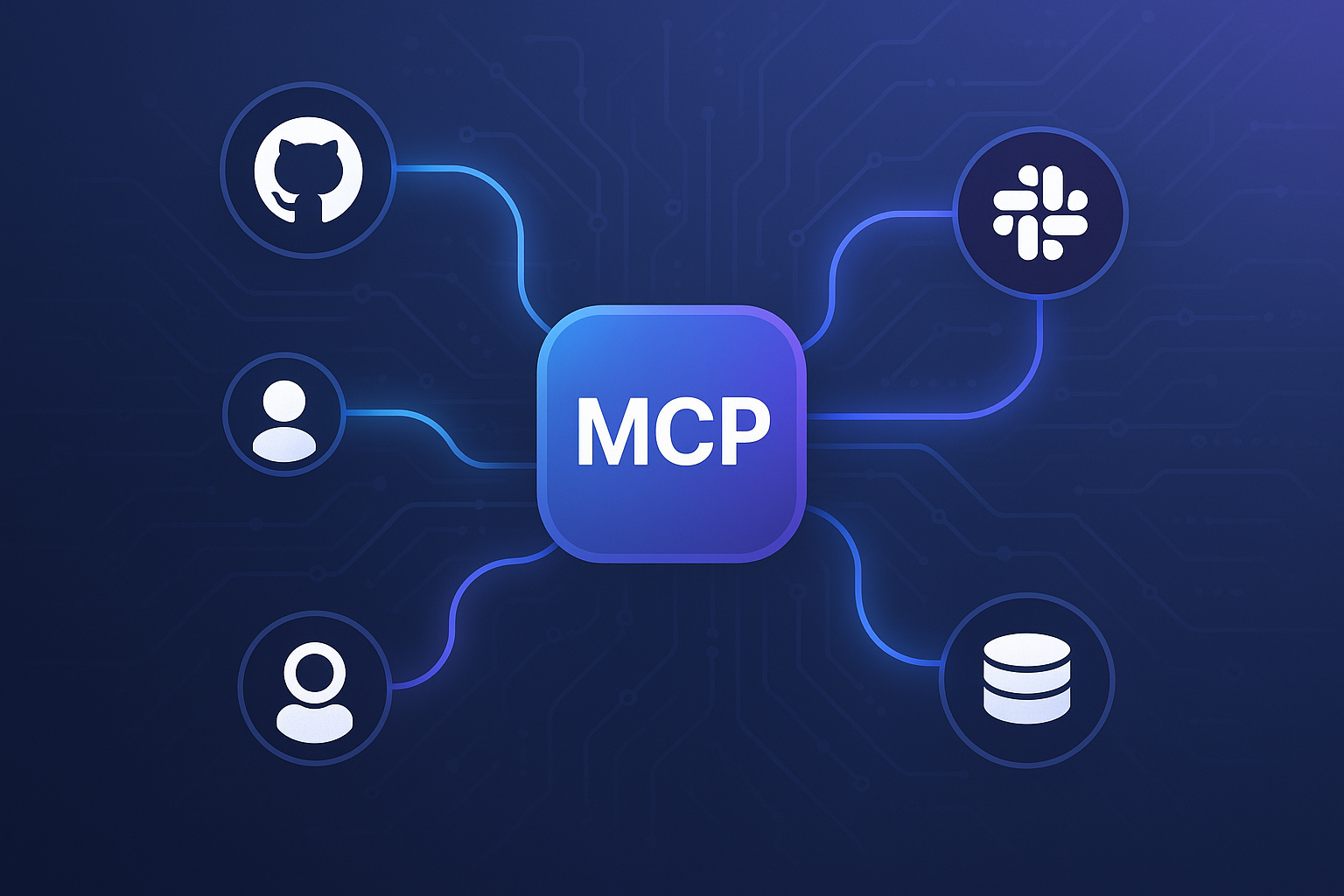
ChatGPT, Codex, and Claude are useful on their own. But each normally starts inside one company's model ecosystem. What if you want your assistant to ask a GPT model, a Claude model, Gemini, Grok, DeepSeek, or another model the same question and compare the answers?
Writingmate provides that bridge through the Model Context Protocol, or MCP. MCP is a standard that lets an AI application call tools supplied by another service. In this setup, ChatGPT, Codex, or Claude is the MCP host. Writingmate is the MCP server. The host decides what to do, while Writingmate lists available models and sends requests to the models you choose.
The result is a practical multi-model workflow: one conversation can discover models, send the same prompt to several of them, and turn the returned answers into a side-by-side evaluation.
Writingmate's catalog includes 600+ AI models and tools across text, images, video, search, coding, and other tasks. Not every catalog item is a text LLM, and access depends on your Writingmate plan, workspace settings, provider availability, and usage limits. Use the live AI Models Directory instead of relying on a fixed list.
What the Writingmate MCP server provides
The remote MCP endpoint is:
https://writingmate.ai/api/mcp
It currently exposes tools that let an MCP host:
- list the models available to your Writingmate account
- retrieve metadata for a specific model
- create a chat completion
- create a Responses API response
- generate an image
- start a video generation and check its status
This guide focuses on the first three capabilities: model discovery, text generation, and comparison.
Writingmate supports OAuth 2.1 and Developer Keys for authentication. OAuth is the easiest choice for hosted clients: the client opens Writingmate in your browser, you sign in and approve access, and the client manages its access and refresh tokens. A Developer Key is a password-like token for clients that accept a fixed bearer token. Both methods use the same plan access and workspace limits as Writingmate's OpenAI-compatible API.
Before you connect anything
You need:
- A Writingmate account.
- A Writingmate plan that can access the models you want to test.
- Codex, Claude, ChatGPT, or another MCP host that supports a remote Streamable HTTP server.
- A Developer Key from Profile Settings → API Keys only if your host does not support OAuth.
If you use a Developer Key, treat it like a password. Do not paste it into a public repository, issue, screenshot, or shared prompt. Prefer an environment variable on your own machine.
On macOS or Linux, set it for the current terminal session like this:
export WRITINGMATE_DEVELOPER_KEY="YOUR_WRITINGMATE_DEVELOPER_KEY"
On PowerShell:
$env:WRITINGMATE_DEVELOPER_KEY="YOUR_WRITINGMATE_DEVELOPER_KEY"
Option 1: Connect Codex or the ChatGPT desktop app
Codex stores MCP configuration in ~/.codex/config.toml. According to the official Codex MCP documentation, the ChatGPT desktop app, Codex CLI, and the Codex IDE extension share this configuration.
Add the following block to ~/.codex/config.toml:
[mcp_servers.writingmate]
url = "https://writingmate.ai/api/mcp"
bearer_token_env_var = "WRITINGMATE_DEVELOPER_KEY"
Restart Codex, the IDE extension, or the ChatGPT desktop app after saving the file. In Codex CLI, run:
codex mcp list
You can also open Codex and enter /mcp to check the connection. A successful connection should show Writingmate tools such as list_models and create_chat_completion.
The environment variable must be available to the process that launches Codex or the desktop app. If the server appears but authentication fails, launch the application from the terminal where you exported the key, or add the variable through your operating system's secure environment configuration.
Codex IDE setup without editing TOML
The Codex IDE extension also has a visual setup flow:
- Open the gear menu.
- Select MCP servers.
- Select Add server.
- Choose Streamable HTTP.
- Enter
Writingmateas the name andhttps://writingmate.ai/api/mcpas the URL. - Configure the bearer token from
WRITINGMATE_DEVELOPER_KEYif your installed version exposes that field. - Save, then restart the extension.
The TOML method is more explicit and keeps the key itself out of the configuration file.
Option 2: Connect Claude Code
Claude Code supports remote HTTP MCP servers and authorization headers. Create a .mcp.json file in a project if you want to share the server definition with a team, or add it to your user configuration if you want Writingmate available across projects.
Use this configuration:
{
  "mcpServers": {
    "writingmate": {
      "type": "http",
      "url": "https://writingmate.ai/api/mcp",
      "headers": {
        "Authorization": "Bearer ${WRITINGMATE_DEVELOPER_KEY}"
      }
    }
  }
}
Claude Code expands environment variables inside HTTP headers, so the secret stays outside the JSON file. The official Claude Code MCP documentation describes the same ${VAR} pattern.
Start Claude Code in the project and approve the server when prompted. Then use:
/mcp
You can also inspect configured servers from a terminal:
claude mcp list
claude mcp get writingmate
For a private, user-wide setup, you can add the server through Claude Code's CLI. Be careful: a command with a literal token can save that token in Claude's private configuration and may remain in shell history. The environment-variable JSON configuration above is usually the safer choice.
Option 3: Connect Claude on the web or Claude Desktop
Claude's remote custom connectors are available from Customize → Connectors → Add custom connector. Enter https://writingmate.ai/api/mcp as the remote MCP URL. Claude discovers Writingmate's OAuth server, opens a browser window, and asks you to sign in and approve the connection. You do not need to create or paste a Developer Key for this flow.
See Anthropic's remote custom connector guide for the current plan and authentication requirements.
What about ChatGPT on the web?
ChatGPT supports custom MCP apps through developer mode, but availability and permissions depend on the ChatGPT plan and workspace role. OpenAI's developer mode guide says full MCP support is available on the web for Business and Enterprise/Edu workspaces, with more limited support on Pro.
Add the following URL in ChatGPT's custom-app form:
MCP endpoint: https://writingmate.ai/api/mcp
ChatGPT uses Writingmate's OAuth flow to ask you to sign in and approve access. Workspace administrators can still control whether custom MCP apps are available. Do not publish a custom app containing a shared personal Developer Key.
Run your first multi-model request
Once Writingmate appears as a connected MCP server, start with a discovery request:
Use the Writingmate MCP server to list the text models available to my account.
Find one current model from OpenAI, Anthropic, Google, and DeepSeek that can answer a text prompt.
Return their exact model IDs and short metadata. Do not run a completion yet.
Review the IDs before continuing. Model catalogs change, so exact IDs are safer than guessing from a marketing name.
Next, test one model:
Using Writingmate's create_chat_completion tool, send this message to MODEL_ID:

"Explain retrieval-augmented generation to a product manager in 120 words. Include one limitation."

Use temperature 0.2 and max_tokens 250. Return the model ID and its answer.
If this works, the connection, key, model access, and completion tool are all functioning.
Compare several LLMs with the same prompt
The most useful workflow is a controlled comparison. Copy this template into Codex or Claude and replace the task and model IDs:
Use the Writingmate MCP tools for this evaluation.

Models:
- MODEL_ID_A
- MODEL_ID_B
- MODEL_ID_C
- MODEL_ID_D

Task for every model:
"Write a launch email for a privacy-first team notes app. The audience is operations managers at 20–100 person companies. Keep it under 180 words. Include a subject line, one concrete benefit, and one call to action. Do not use the words revolutionary, seamless, or unlock."

Method:
1. Call each model separately with exactly the same user message.
2. Use temperature 0.2 and max_tokens 350 for every call.
3. Do not show one model another model's answer.
4. Preserve each raw answer before evaluating it.
5. Score every answer from 1–5 for instruction following, specificity, clarity, tone, and factual restraint.
6. Quote brief evidence for each score.
7. Return a comparison table, then recommend a winner and explain the trade-off.
8. If any call fails, report the exact model ID and error instead of silently substituting another model.
This prompt controls several variables that often make casual comparisons misleading. Every model receives the same task, temperature, and output limit. The evaluator also keeps failures visible instead of replacing a model without telling you.
Make the comparison more reliable
A polished answer is not automatically the best answer. Use a rubric that matches the real job.
For code, score correctness, test coverage, security, maintainability, and explanation quality. For research, score factual accuracy, source quality, uncertainty, and completeness. For marketing copy, score instruction following, specificity, audience fit, clarity, and unsupported claims.
For a more serious evaluation:
- Run at least five representative prompts, not one favorite example.
- Keep generation settings equal where models support the same settings.
- Remove model names and label outputs A, B, C, and D before judging.
- Ask a separate model to judge the anonymized answers.
- Verify factual claims and execute generated code or tests.
- Track latency, errors, and usage alongside quality.
You can ask Writingmate to use another model as the judge:
Anonymize the four saved answers as A–D. Then send the task, rubric, and anonymized answers to JUDGE_MODEL_ID through Writingmate. Ask the judge for scores with evidence. Do not reveal which provider produced each answer until after the judging step.
This does not eliminate evaluator bias, but it reduces brand bias and makes the process easier to repeat.
Common problems and fixes
The server returns 401 Authentication required
If you connected with OAuth, disconnect and connect again so the host can repeat discovery and authorization. Confirm that the browser returns to the host after you approve access.
If you connected with a Developer Key, check that the host sends this header:
Authorization: Bearer YOUR_WRITINGMATE_DEVELOPER_KEY
Confirm that you created a Writingmate Developer Key, not an OpenAI, OpenRouter, or provider API key. Also confirm that the environment variable is visible to the running application.
The model is listed but the completion fails
The model may require a different Writingmate plan or workspace permission. It may also have been repriced, retired, or temporarily unavailable. Retrieve its metadata, check Writingmate model and plan guidance, and try another model you can access.
The comparison is unfair
Check whether the host changed the prompt, temperature, token limit, or message history between calls. Tell it to call every model independently and preserve the raw outputs.
The host says it compared models but shows no tool calls
Ask it to name every exact model ID it called and return any tool errors. In Codex or Claude Code, inspect the MCP tool activity. A model should not claim that it ran an external comparison when it only described one.
The answer is cut off
Increase max_tokens carefully and ask for a shorter output. Larger outputs use more of your allowance and can make comparisons slower.
Security and cost notes
Every prompt sent through the Writingmate MCP server leaves the host application and is processed by Writingmate and the selected model provider. Do not send secrets, personal data, source code, or customer information unless that use complies with your organization's policies and the relevant provider terms.
Each model call counts separately. A four-model comparison makes four generation requests, plus any judge-model request you add. Writingmate plan limits and provider-specific limits still apply.
The Writingmate text-generation MCP tools are generation tools, not write access to your files or accounts. Even so, review tool inputs before approval. Connect only to the official https://writingmate.ai/api/mcp endpoint and rotate a Developer Key if you think it has been exposed.
The practical takeaway
You do not need to leave Codex or Claude every time you want a second opinion from another model. Connect the Writingmate MCP server once, discover the model IDs available to your account, and let your main assistant route the same task to several models.
The connection is only half the workflow. A useful comparison also needs equal prompts, equal settings, a task-specific rubric, visible failures, and human verification. With those controls in place, Writingmate MCP turns a single AI assistant into a practical interface for testing models from many providers without manually copying prompts between separate apps.
Start with two models and one real task. When the process is stable, expand to four models, anonymized judging, and a reusable evaluation set.
Frequently Asked Questions
Sources
Written by
Artem Vysotsky
Ex-Staff Engineer at Meta. Building the technical foundation to make AI accessible to everyone.

Reviewed by
Sergey Vysotsky
Ex-Chief Editor / PM at Mosaic. Passionate about making AI accessible and affordable for everyone.