
Managing Your Subscription
Use Profile Settings → Subscription to review the plan and billing status for your current workspace. Only the workspace owner can cancel a paid subscription.
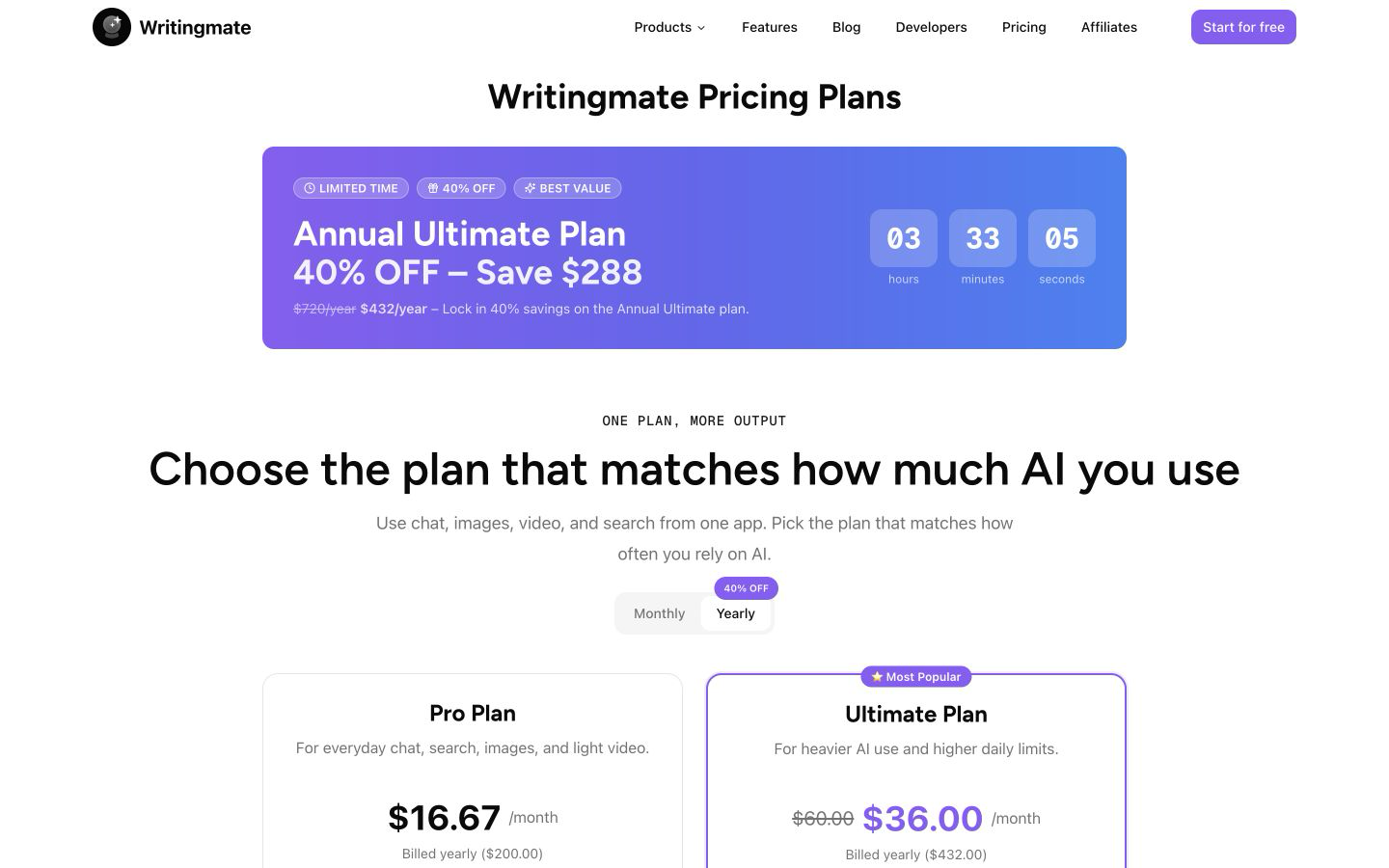
Use the live pricing page to compare current plans before changing a subscription.
Open Subscription settings
- Sign in to Writingmate.
- Open the profile menu in the lower-left corner.
- Select Profile Settings.
- Select Subscription.
You can also open Subscription settings directly.
What the page shows
The Subscription page can show:
- Your current plan.
- The Next billing date for an active web subscription.
- Your usage and limits for each model category.
- Purchase History, including invoice and PDF links, when invoices are available.
- See all plans for comparing or changing plans.
An AppSumo lifetime license shows its AppSumo tier, credit pool, and next credit reset instead. Select Manage on AppSumo to manage that license in your AppSumo account.
Open the Stripe billing portal
For an active web subscription:
- Select See all plans.
- Find your current plan and select Manage Subscription.
Writingmate then opens the Stripe billing portal. Stripe shows the billing actions available for your subscription. Follow the prompts there, then return to Writingmate when you are finished.
Cancel a web subscription
Cancel before the Next billing date to prevent renewal for the next billing period.
- Open Profile Settings → Subscription.
- Select Cancel Subscription.
- Choose a cancellation reason. You can also add optional feedback.
- Select Continue, review the access information, and select I Understand.
- Type
cancelin the confirmation field. - Select Cancel Subscription.
Cancellation takes effect at the end of the current billing period. You keep your paid access until the date shown in the confirmation. The Subscription page then shows Subscription cancelled and the date when access ends.
After that date, your chats, files, documents, generated content, and saved work become inaccessible until you subscribe again. Your custom prompts and settings are preserved for your return.
Canceling a subscription does not automatically refund an existing payment. See the Writingmate Refund Policy.
Resume or subscribe again
The Subscription page does not currently show a Resume Subscription button after cancellation is scheduled. If you need help before access ends, contact hello@writingmate.ai.
After the billing period ends, open Subscription and select Upgrade Plan to subscribe again. Resubscribing restores access to the saved data and features associated with your workspace.
Web app and Chrome extension
Current Pro, Ultimate, and Ultra plans include access to both the Writingmate web app and the Writingmate Chrome extension. Manage or cancel this subscription from the web app by following the steps above. When the paid period ends, the included paid extension access ends with it.
If you cannot see Cancel Subscription
The button appears only for the owner of a workspace with an active paid web subscription. It does not appear when:
- You are a workspace member rather than its owner.
- Cancellation is already scheduled.
- The current workspace uses the Free plan.
- The workspace uses an AppSumo lifetime license.
If you expected to see the button, confirm that you selected the correct workspace and signed in as its owner.