
Main Dashboard
The Main Dashboard opens when you start a new chat. Use it to write a prompt, choose how Writingmate should respond, select a model, add files or tools, and send your message.
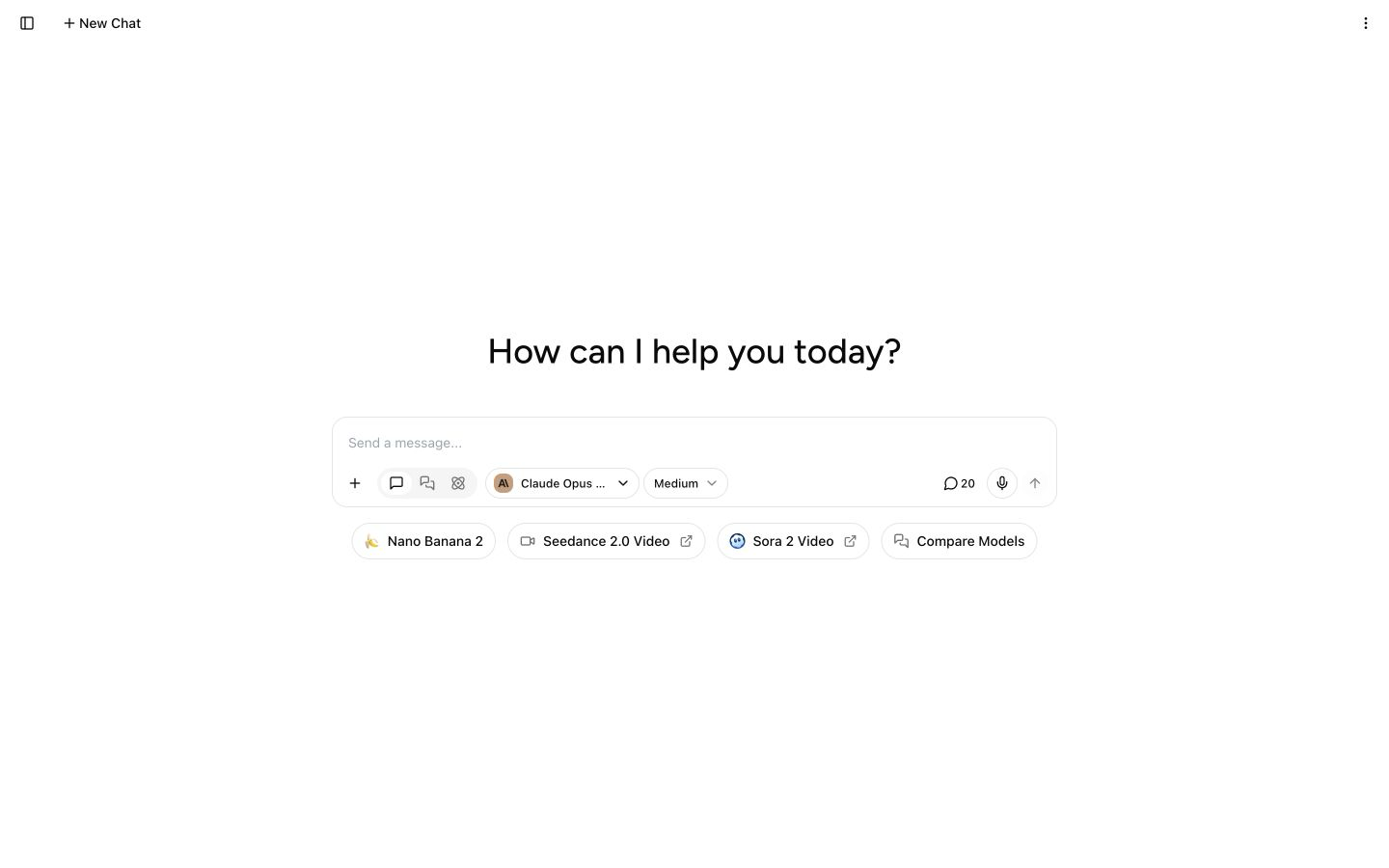
The desktop dashboard with the sidebar closed. Suggested shortcuts and the selected model can change.
Header
The top-left button opens or closes the sidebar. When the sidebar is closed, New Chat appears next to it.
The number beside the message icon is the remaining allowance for the selected model category. Select it to see usage details and the reset time. Its location changes with screen size: it appears in the header on a narrow screen and beside the composer controls on a wider screen.
After a conversation starts, the header can also show sharing and conversation actions. The conversation menu can export the chat as Markdown, JSON, or CSV.
Message composer
Type your request in the Send a message... field. The controls below it determine what Writingmate sends and how it handles the task.
Add content or tools
Select the + button to open Add content or tools. Available items depend on your plan, selected model, connected integrations, and Agent settings. The menu can include:
- Upload from computer to attach a file from your device
- Add from knowledge base to reuse a file already saved in Writingmate
- Web search to let the model use current web sources
- Canvas to create or revise a document in a separate work area
- Integrations to use tools from connected apps through MCP
A selected tool appears as a pill beside the + button. Select the pill to remove that tool. Image generation is selected through the model selector, not this menu.
See Uploading and Managing Files and Web Search for setup and usage details.
Choose a mode
On a wide screen, the three mode buttons appear directly in the composer. On a narrow screen, open the mode dropdown and choose:
- Chat for one model response
- Compare to send the same prompt to two to four text models and view their answers side by side
- Agent for a longer, multi-step task
The desktop tooltips call these Chat Mode, Compare Mode, and Agent Mode. Switching between Agent and the standard chat modes after messages have been sent starts a new chat; the current conversation stays in chat history.
Choose a model and effort
Open the model selector to choose a text, image, or video model. In Compare, select up to four text models. In Agent, Writingmate chooses the models for the task, so the model selector is hidden.
Some reasoning models also show an Effort control. The available levels depend on the model and can range from Instant to Max. Higher effort can help with complex work but may take longer.
Send or stop a message
Select the microphone button to dictate a prompt. Your browser must have microphone permission. Select the arrow button to send the message. While Writingmate is responding, the send button changes to a stop button.
Suggested shortcuts can appear below the composer, such as an image model, a video model, or Compare Models. These shortcuts change as Writingmate updates the available models and tools.
Sidebar
Open the sidebar to move between the main areas of the app:
- New Chat starts a separate conversation.
- Search finds chats and prompts.
- Prompts opens saved and reusable prompts.
- Agents opens pre-built Agents and your custom Agents.
- Images opens image generation and the image library.
- Video opens video generation and saved videos.
- Projects appears when Projects are enabled and lists your project workspaces.
- Chat history groups your saved conversations and provides pin, rename, export, move, share, and delete actions where available.
Your workspace or Writingmate name appears at the top of the expanded sidebar. Your profile menu appears at the bottom. See Sidebar Navigation for more detail.
For a first end-to-end chat, continue to Chat Overview.