
Chat Overview
Start a conversation from New Chat. Choose a mode and model, add any files or tools the task needs, then type your request in Send a message....
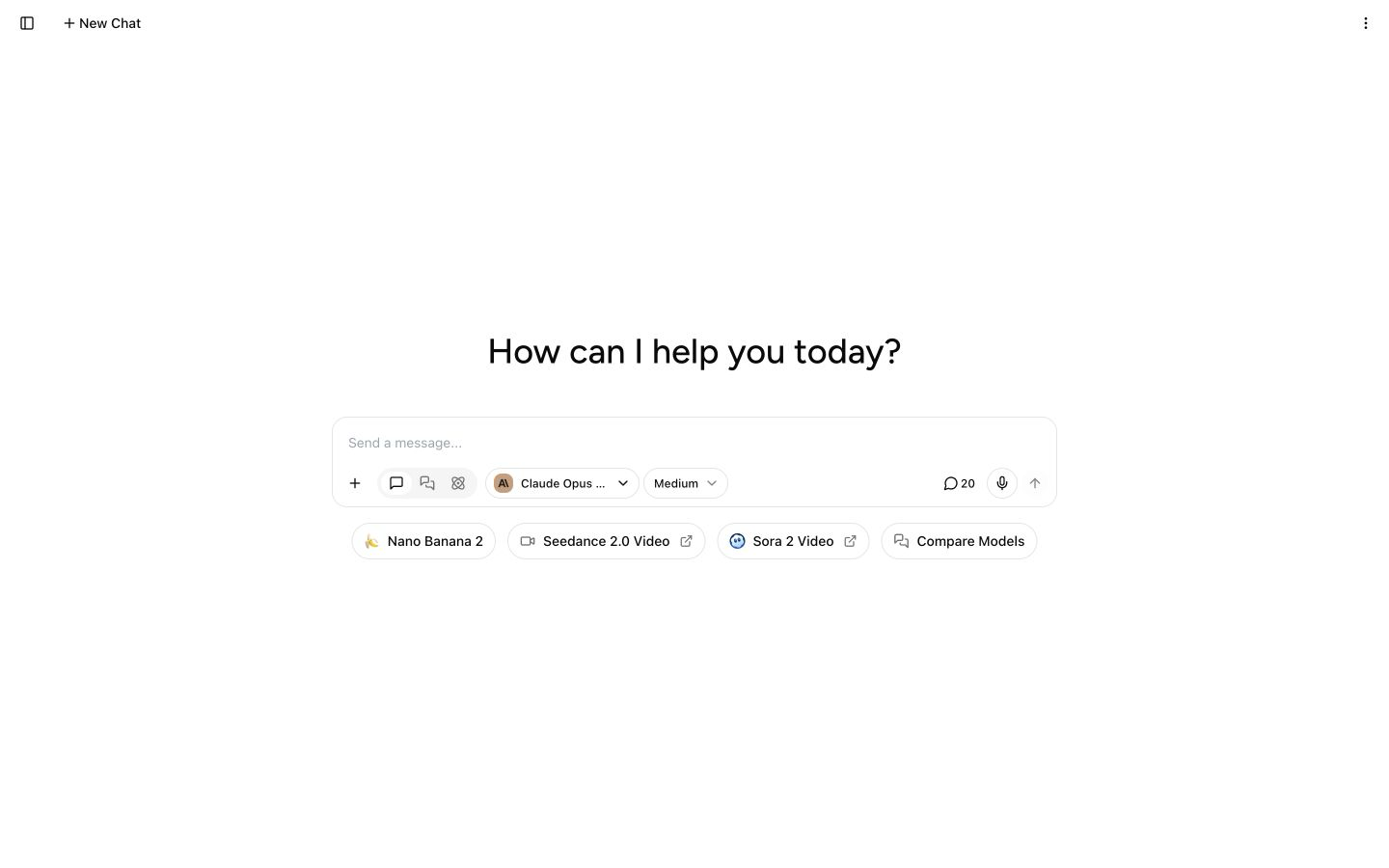
A new chat on desktop. The selected model and suggested shortcuts can change.
1. Choose how Writingmate should respond
The mode control appears as three buttons on a wide screen and as a dropdown on a narrow screen.
- Chat sends your prompt to one selected model. Use it for most conversations.
- Compare sends the same prompt to two to four selected text models. The replies appear under labeled model tabs so you can switch between them.
- Agent works through a longer, multi-step task. Writingmate selects the models for this mode, so the model selector is hidden. Agent tasks can take longer and may use several messages from your allowance.
The desktop labels are Chat Mode, Compare Mode, and Agent Mode. If a conversation already has messages, switching between Agent and either standard chat mode starts a new chat. Writingmate keeps the current conversation in chat history.
2. Choose a model and effort
Open the model selector to search or browse the Text, Images, and Video tabs.
- In Chat, choose one text or image-output model for the conversation.
- In Compare, choose up to four text models.
- Selecting a direct image or video model can open its dedicated generation screen.
The available models depend on your plan, workspace settings, and the current catalog. A lock or plan badge shows when a model needs a different plan. Use Manage Models at the bottom of the selector to change which models appear.
Some reasoning models show an Effort control. Available levels depend on the selected model and can range from Instant to Max. Higher effort can help with complex work but may take longer. Models without selectable reasoning levels do not show this control.
See Supported AI Models and Message Limits for current availability and allowance rules.
3. Add files or tools when needed
Select the + button to open Add content or tools. The menu changes with the selected model, plan, connected integrations, and Agent configuration. It can include:
- Upload from computer for a new attachment
- Add from knowledge base for a file already saved in Writingmate
- Web search for current web sources
- Canvas for drafting or revising a document in a work area
- Integrations for tools from connected apps through MCP
Do not assume that every model supports every file type or tool. Writingmate only shows relevant tools when the selected model can use them. It may also switch to a compatible model after you choose a file. Plan requirements still apply.
Image generation is selected through the model selector or Images, not from the tools menu. Video models open the video generation workflow.
Learn more in Uploading and Managing Files, Web Search, AI Image Generation, and AI Video Generation.
4. Write and send the prompt
Type or paste your request in Send a message.... Select the arrow button to send it. While Writingmate is responding, the button changes to a stop button.
Your keyboard shortcut depends on your message settings. When Enter sends the message, use Shift+Enter for a new line. Some accounts can be configured to send with Command+Enter on macOS or Ctrl+Enter on Windows.
To dictate a prompt, select the microphone button and allow microphone access in your browser. Select it again to stop recording. Voice input availability depends on your plan.
The message indicator shows the remaining allowance for the selected model category. Select it to see usage details and the next reset time.
5. Continue or revise the conversation
Follow-up prompts keep the current conversation context. You can also:
- hover over your prompt and select Edit message to revise it and generate the conversation again from that point
- select a model tab to read each reply in Compare
- select the stop button while a response is still generating
- use Retry if a response fails
- select the down-arrow button to return to the newest message in a long conversation
Editing an earlier prompt removes the later messages from that conversation before Writingmate generates a new response.
6. Use response actions
Hover over a completed single-model response to show its actions:
- Copy copies the response text.
- Play Message generates audio for the response; the action changes to Stop Audio during playback.
- Upvote Response or Downvote Response sends feedback about the answer.
- Regenerate Response creates another answer for the latest response.
- Branch chat creates a separate conversation from that response.
Some actions are hidden while a response is loading, in a read-only shared chat, or when several model replies are grouped in Compare.
For the layout around the conversation, see Main Dashboard and Sidebar Navigation. For reusable task-specific assistants, see Overview of Agents.