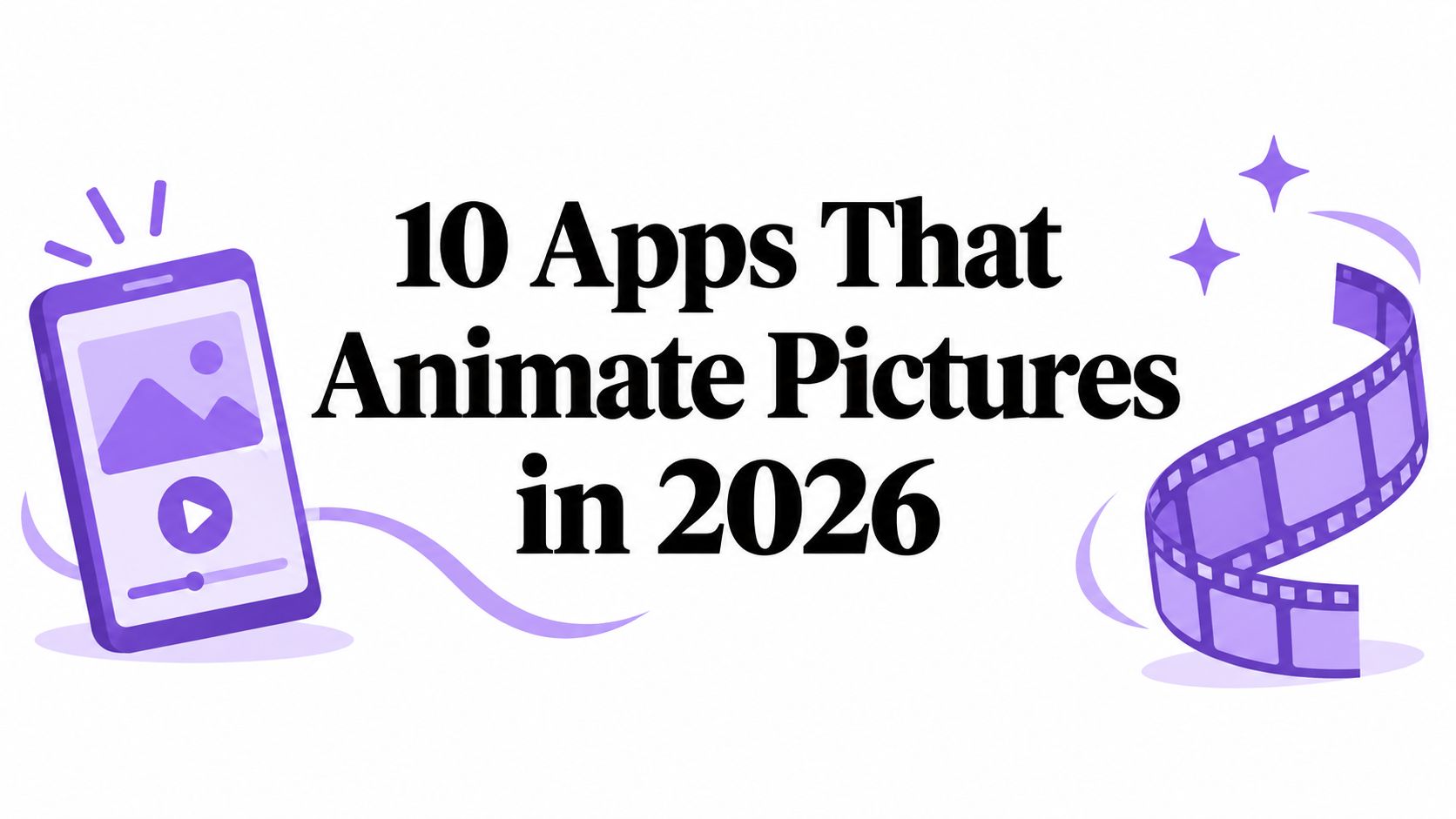
What do you mean when you say you want to animate a picture? You might want clouds to drift across a horizon, a portrait to blink or speak, a social template to add instant movement, or a cinematic video generated from one still image. Those are different jobs, and the best app for one can be a poor choice for another.
This guide compares 10 apps that animate pictures by outcome rather than by feature count. I'll focus on control, learning curve, output style, platform, pricing model, export requirements, and practical limitations. You'll find mobile, web, and desktop tools, plus Writingmate as a complementary workspace for comparing image and video models without switching between separate AI services. If your project involves family material, you may also find these group montage and interview tips useful before you start editing.
Table of Contents
- 1. Motionleap
- 2. Plotaverse
- 3. PhotoMirage
- 4. D-ID Creative Reality Studio
- 5. MyHeritage Deep Nostalgia and LiveMemory
- 6. TokkingHeads
- 7. Reface
- 8. CapCut Photo Animation
- 9. Kaiber
- 10. Runway
- Top 10 Apps That Animate Pictures, Feature Comparison
- Choose the Animation Workflow That Fits
1. Motionleap
Motionleap is the quickest recommendation for a still image that needs selective movement, not a completely new video. Its motion arrows let you direct water, clouds, hair, smoke, or fabric, while anchors and freeze masks keep nearby areas stable. That distinction matters. The app doesn't ask an AI model to reinterpret the whole image, so you retain more control over what moves and what stays still.
The mobile workflow is deliberately fast. You can animate a scene, add a camera tilt or zoom, replace a sky, and finish with overlays such as rain or light effects without opening a desktop editor. The one-tap animated water and sky packs are useful when speed matters more than originality.
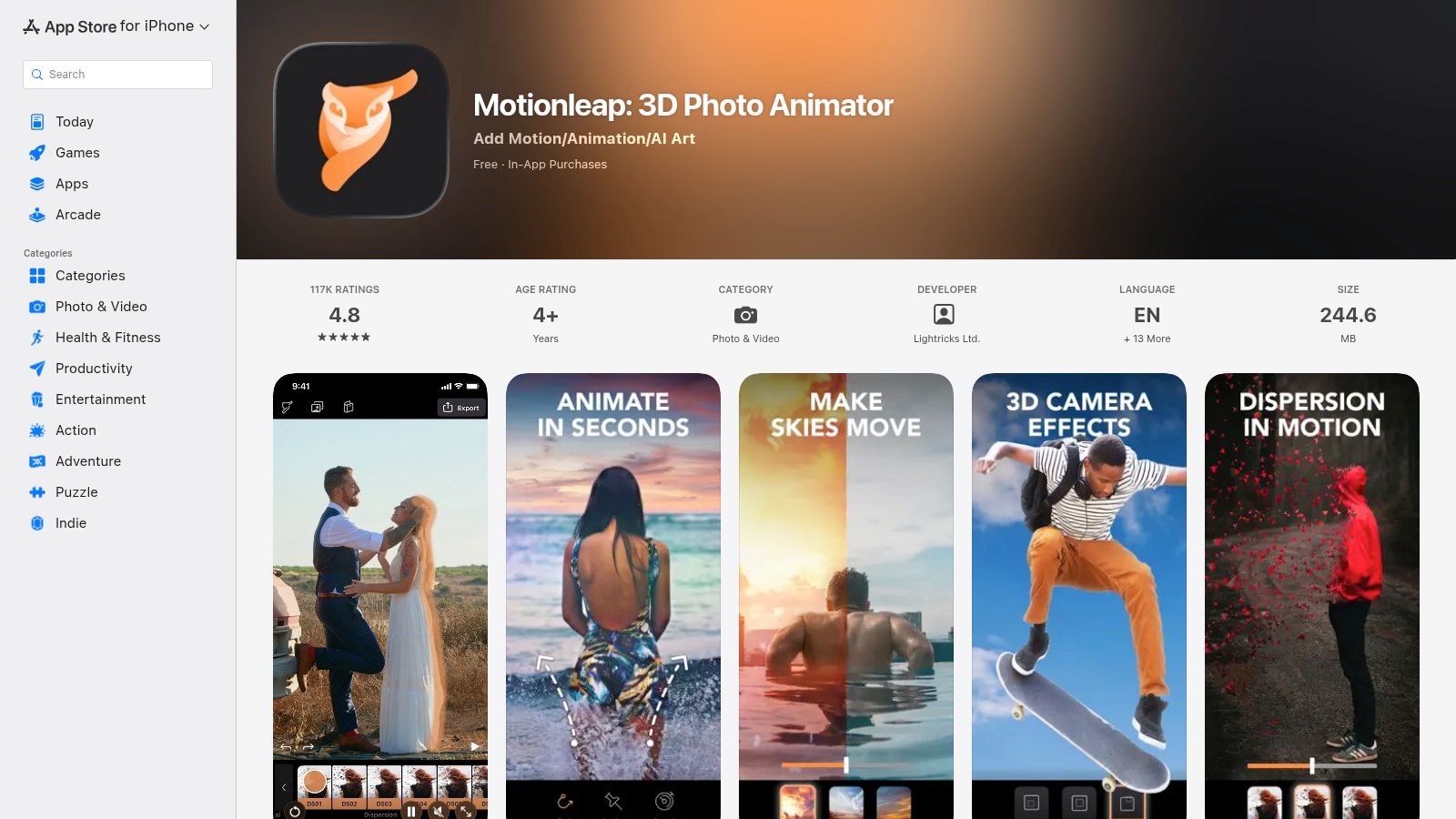
Best for social-ready motion loops
Motionleap works especially well for short social posts where a moving focal point creates enough visual interest. It isn't the right tool for a character walking through a scene, a talking portrait, or a narrative sequence with changing camera logic. Its strengths are directional motion, fast masking, and stylized loops.
The app has remained a durable consumer product. Motionleap was released globally on 9 September 2018 and had about 25 million total downloads according to the latest available store estimates, with recent U.S. monthly estimates around 9,000 downloads and $60,000 in revenue. Those figures come from Motionleap's app listing and store estimates, not from a controlled performance test.
- Choose it for: Quick cinemagraph-style posts and animated outdoor scenes.
- Expect: A short learning curve and a broad effect library.
- Watch: Full feature access requires a subscription, and the result is usually a loop rather than a complete image-to-video story.
Visit Motionleap on the App Store for current availability and plan details.
2. Plotaverse
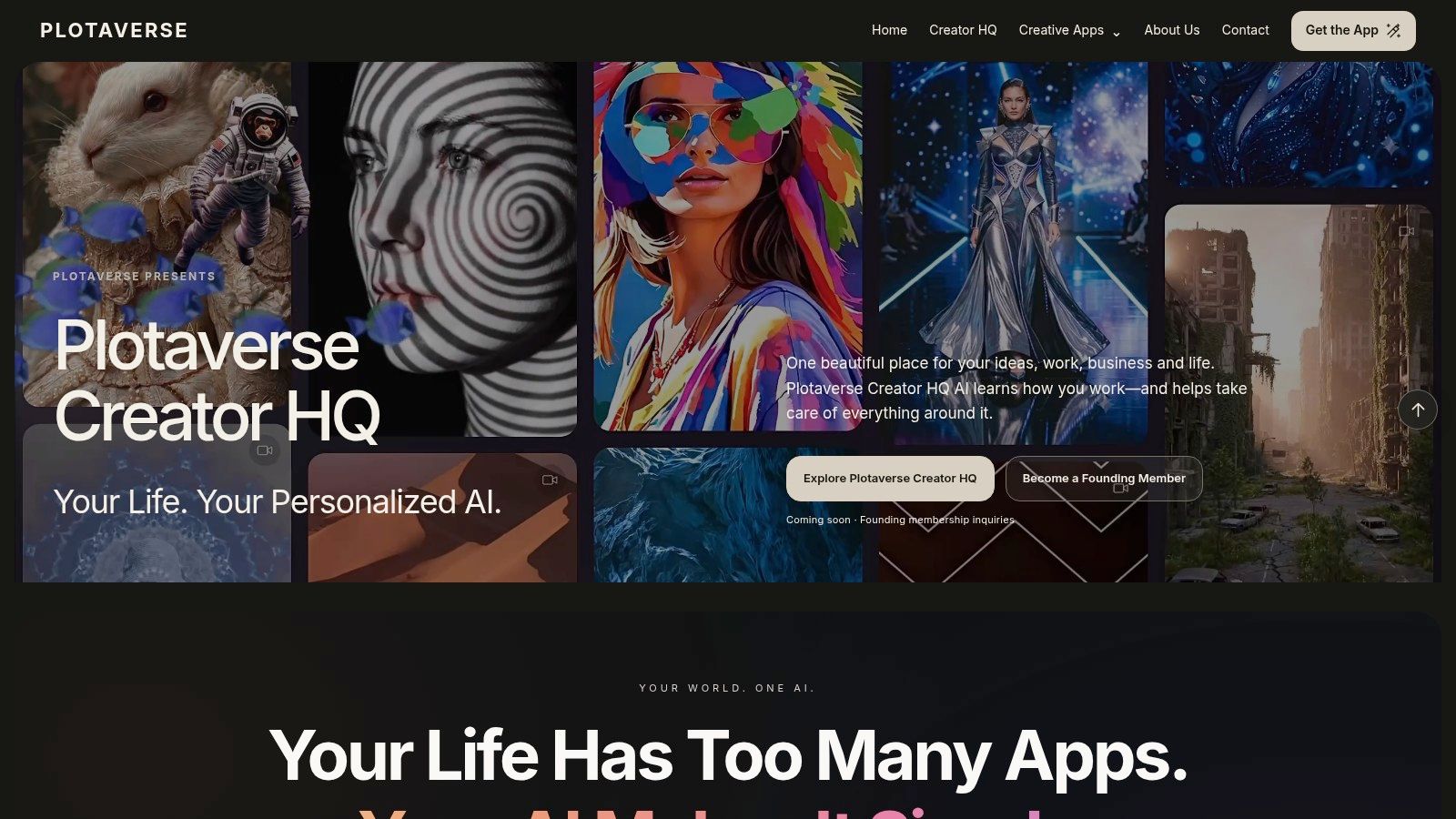
What kind of movement should the image have? Plotaverse, also known as Plotagraph, is designed for motion art with deliberate paths and masks. You draw directional paths over areas that should flow, then add anchors or masks to hold the rest of the composition in place.
The result depends on your decisions rather than a text prompt. A river, flag, smoke plume, or cloud bank can loop convincingly when the direction of movement is clear. Careful control-point placement matters more than piling on effects, so the workflow suits creators willing to refine a scene frame by frame.
Plotaverse also has a creator community where users share projects and overlays. It provides useful references and compatible assets, although you still need to check visual consistency and licensing before using community material in client or commercial work.
Choose it for controlled loops
Plotaverse's strength is looped, stylized movement. It gives you hands-on control over a photograph's composition, making it a practical choice for atmospheric social content, album artwork, and visual experiments. Export expectations should stay modest, since the workflow is aimed at animated loops rather than a complete image-to-video sequence.
Use another category of tool for lip-sync, avatar narration, or a portrait delivering a script. Plotaverse can make a still face feel more alive through surrounding motion, but it does not replace talking-avatar software.
The platform works across mobile devices. Check the official Plotaverse site for current app access and subscription terms. The Plotaverse (Plotagraph) interface shows the path-and-mask workflow clearly.
3. PhotoMirage
Need a controlled motion loop without writing prompts or editing on a phone? PhotoMirage is a practical Windows desktop option built around a mouse-and-keyboard animation workflow. Draw motion arrows over elements that should move, place anchor points on areas that must stay fixed, and preview the result before exporting.
The approach suits product images, natural scenes, and promotional visuals where motion needs to follow the original composition. It takes more deliberate setup than a one-click AI animation, but the trade-off is predictable placement and repeatable results. PhotoMirage supports MP4 with H.264 or HEVC, animated GIF, and WMV, which helps when a project has specific delivery requirements. Its official site lists a 15-day free trial on PhotoMirage's product page.
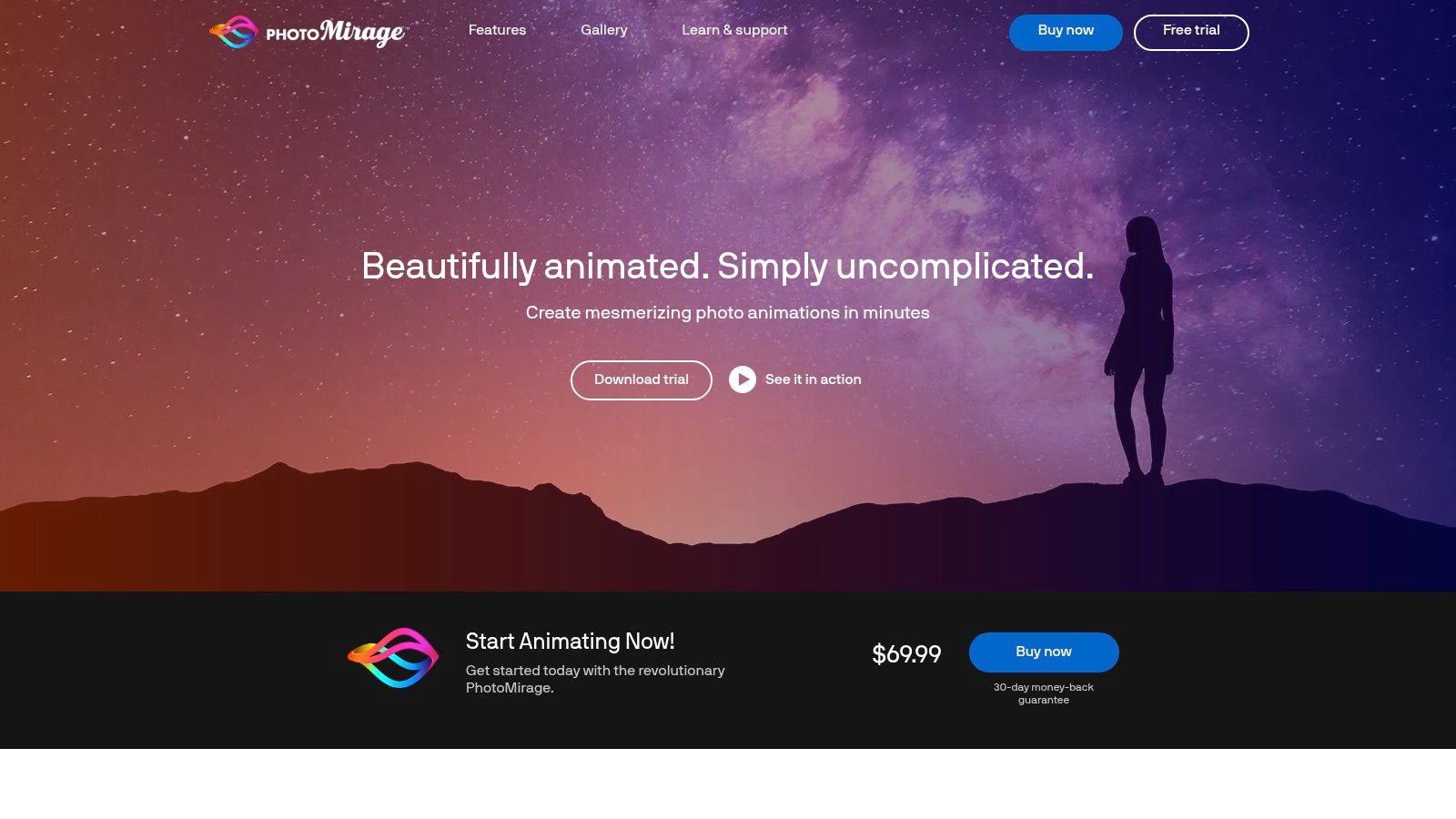
Best fit: precise desktop loops
The interface resembles conventional photo-editing software, so it is easier to inspect than a prompt-first generator. That control comes with a narrower creative range. PhotoMirage can animate selected parts of a still image, but it does not create talking faces, lip-sync, or major AI-generated scene changes.
For a practical walkthrough, use this guide to creating an animated image.
Choose PhotoMirage for Windows-based cinemagraphs, GIFs, and controlled MP4 exports. Consider it when you prefer desktop editing or a perpetual-license option through retailers. Skip it when the project requires full image-to-video generation or an avatar reading a script.
4. D-ID Creative Reality Studio
For a still portrait that needs to speak, D-ID Creative Reality Studio is a focused option. Upload a photo, add text or audio, choose a voice, and generate a speaking, lip-synced presenter. The workflow fits explainers, internal training, announcements, and voiceover-led videos that would otherwise require a live recording.
Its value comes from repeatable presenter production rather than scene animation. Stock and custom avatars cover different branding needs, while voice and language choices support varied audiences. Teams producing scripted clips at scale can use the API to generate videos from structured scripts instead of creating each one manually in the browser.
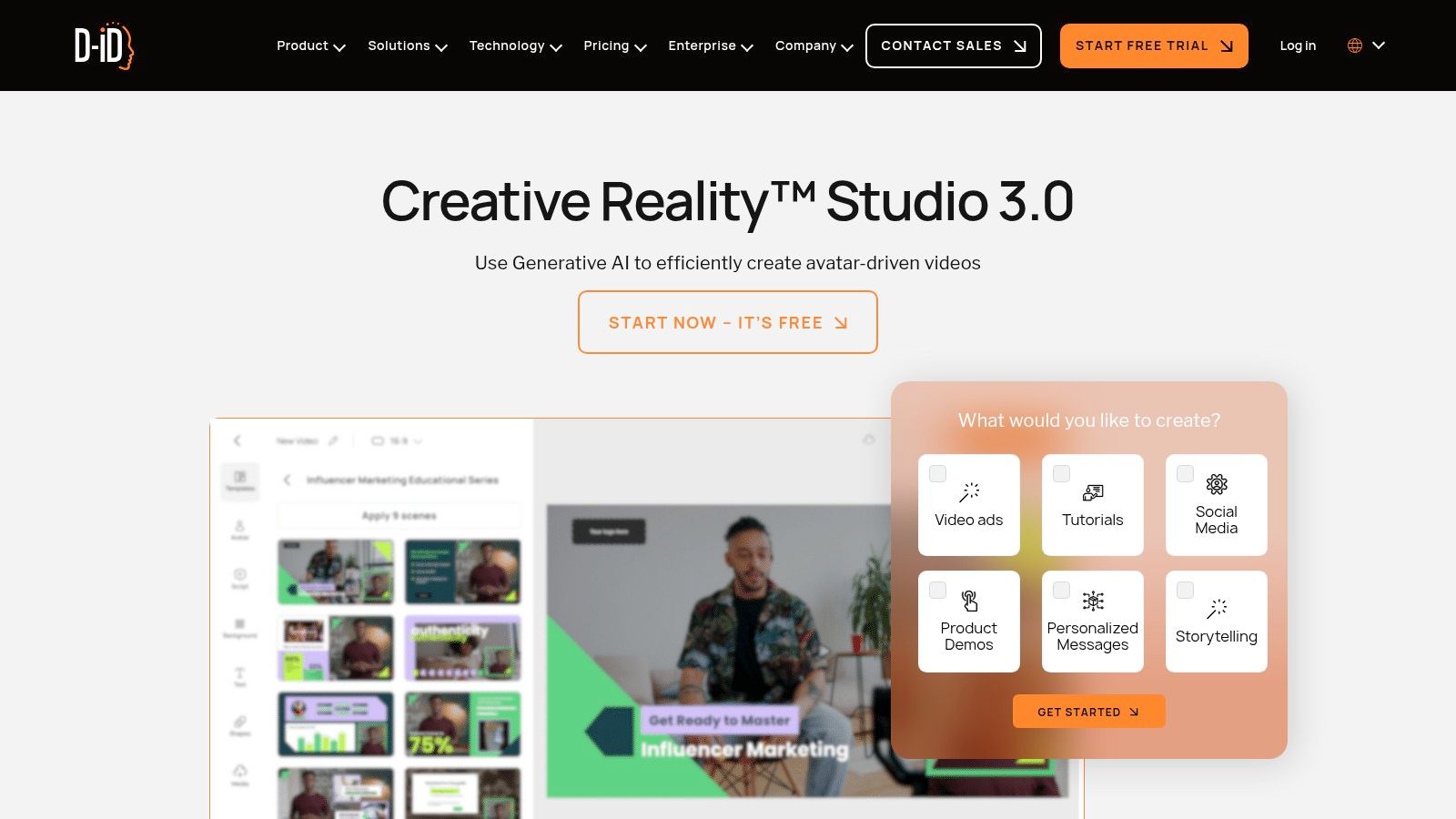
Evaluate the presenter workflow, not scene motion
D-ID should be assessed through mouth timing, facial plausibility, voice quality, script handling, and export restrictions. It is a poor match for selective environmental movement, cinematic camera motion, or full image-to-video generation. Its output centers on a face delivering prepared content.
Plan and test the intended workflow before committing to client production. Lower tiers may add watermarks or restrict features, and a suitable voice may not be available for every project. A convincing preview still fails if branding remains on the export or usage limits interrupt delivery.
Choose D-ID for scripted presenters, explainers, and automated avatar videos. Its strongest workflow combines browser-based studio controls with API access. Check watermark rules, usage limits, voice availability, and commercial requirements before selecting a plan. Current options are listed at D-ID Creative Reality Studio.
5. MyHeritage Deep Nostalgia and LiveMemory
Do you want a subtle portrait loop or a moving family scene? MyHeritage is strongest when the source is an old family portrait and the goal is an approachable facial animation. Deep Nostalgia applies portrait presets for actions such as blinking, smiling, and slight head turns. LiveMemory extends that approach to short, portrait-based scenes.
The workflow stays deliberately simple. Upload a photograph through the web or mobile experience, select an animation, and review the result. There is no need to set paths, masks, prompts, or motion models. That makes it a practical fit for genealogy projects, family archives, and quick sharing.
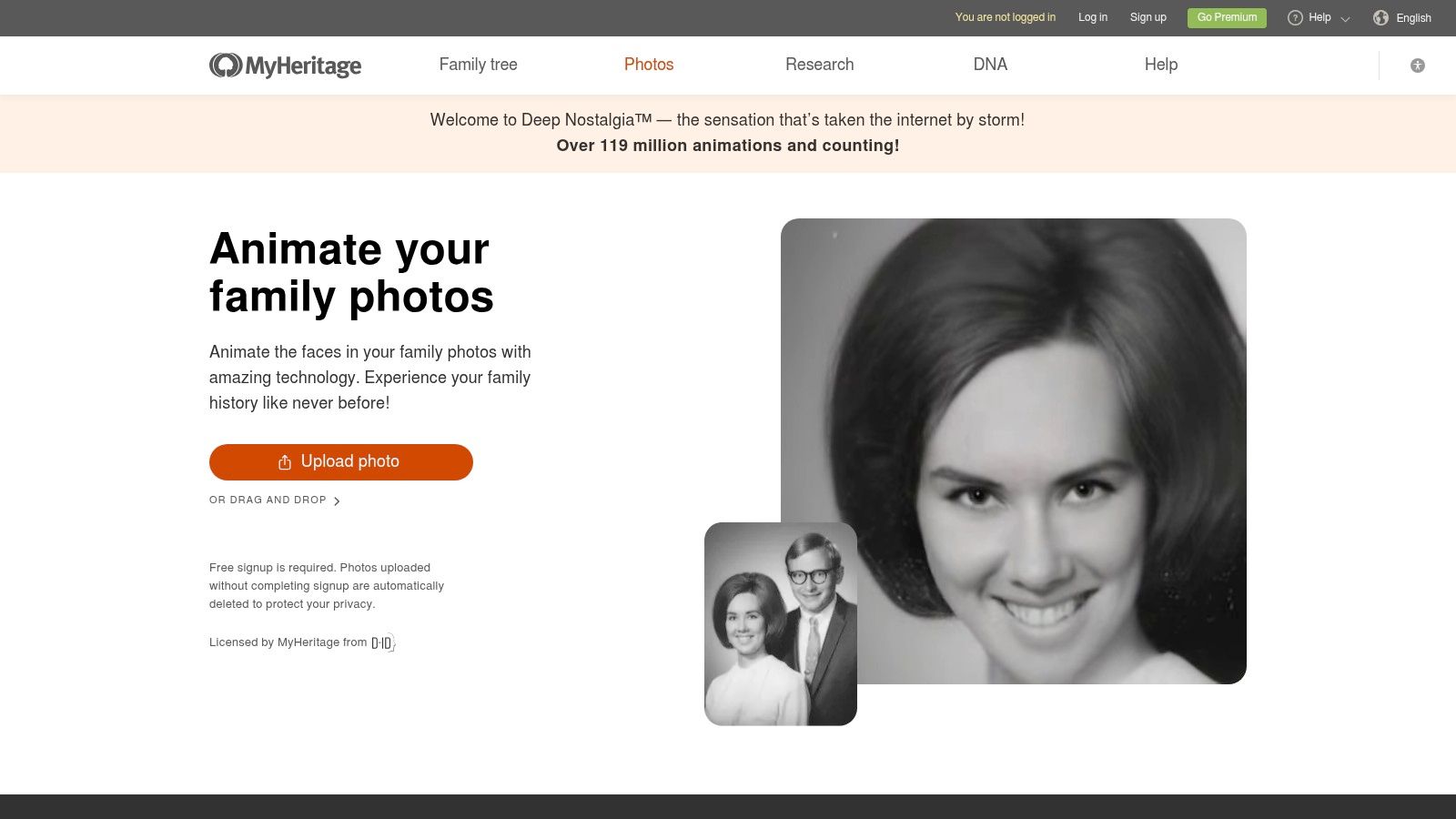
Deep Nostalgia became a major reference point for apps that animate pictures. MyHeritage reported 26 million animations in 11 days after its launch in March 2021. The app also reached number one on the iPhone App Store in 22 countries and entered the top 10 in 55 countries, according to this overview of AI photo-animation tools.
That reach reflects an easy, focused workflow. The tool suits shareable face animation, not detailed motion design. Presets limit control over timing, expression, and movement across a wider scene, so choose another platform for selective environmental loops or full image-to-video generation.
For family archives, check consent before uploading portraits of living people and review image-storage terms. Free access may be limited, and exports may include a watermark. Confirm current conditions at MyHeritage Deep Nostalgia.
6. TokkingHeads
TokkingHeads suits a specific outcome: turning one portrait into a short, expressive character clip. It supports text, audio, and live camera input, while Magic Motion lets you puppeteer a still face with your own expressions. The result feels closer to a quick performance test than frame-by-frame photo editing.
Its strongest workflow is rapid ideation. A centered headshot on a neutral background can produce a usable test in under 30 seconds, making it practical for checking whether a character voice or reaction works before committing to a larger production. Side-profile photos are less reliable, often producing distorted jaw movement. Test those concepts here first, then move to D-ID when accurate lip-sync matters.
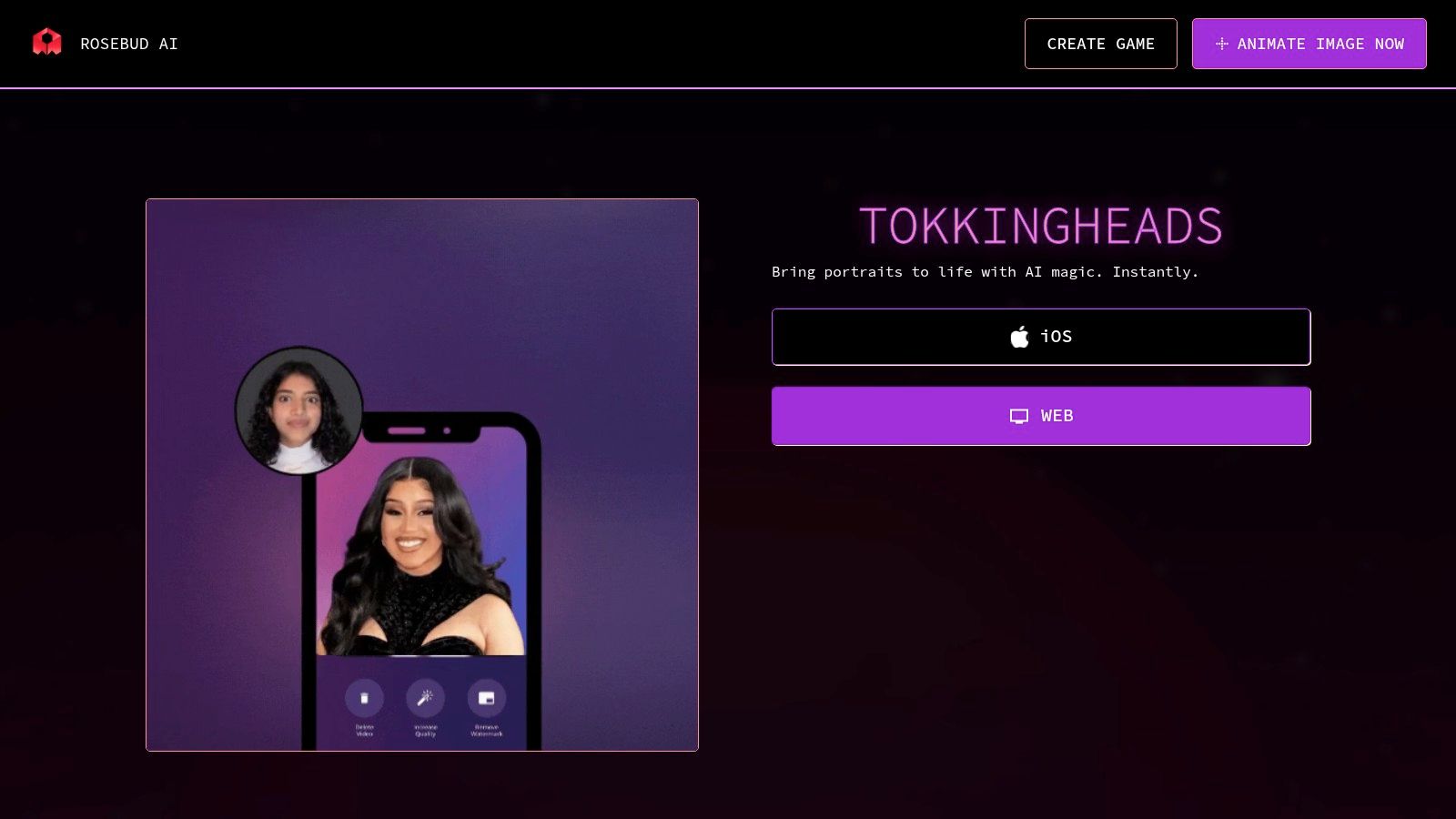
A sketchpad for portrait motion
TokkingHeads offers less control than a presenter platform. Export settings and audio options are lighter, and the tool is a poor fit for wide scenes, product demonstrations, or complex illustrations. Camera input is the most distinctive choice because it lets you test expressions and timing through live puppeteering rather than relying only on presets.
Use it to validate a funny, expressive, or character-led idea. For polished presenter videos, reusable brand layouts, or automated content pipelines, choose a platform with stronger production controls.
- Choose it for: Character tests, expressive portraits, and casual social clips.
- Use camera input for: Live puppeteering and quick expression studies.
- Look elsewhere for: Precise lip-sync, wider scene animation, and detailed export control.
The tool is available through the TokkingHeads web experience, with an iOS option listed by the product.
7. Reface
What kind of animation do you need from a still image? Reface suits creators who want a recognizable face inside a ready-made social format, rather than detailed control over motion. Its templates combine face swapping, portrait animation, singing effects, and short clips designed for quick sharing.
The workflow is simple: upload a portrait, select an effect, and export the result. That speed makes Reface useful for memes, reaction posts, and casual experiments where the template matters more than custom timing or precise movement. Frequent template changes also help it fit fast-moving short-form culture.
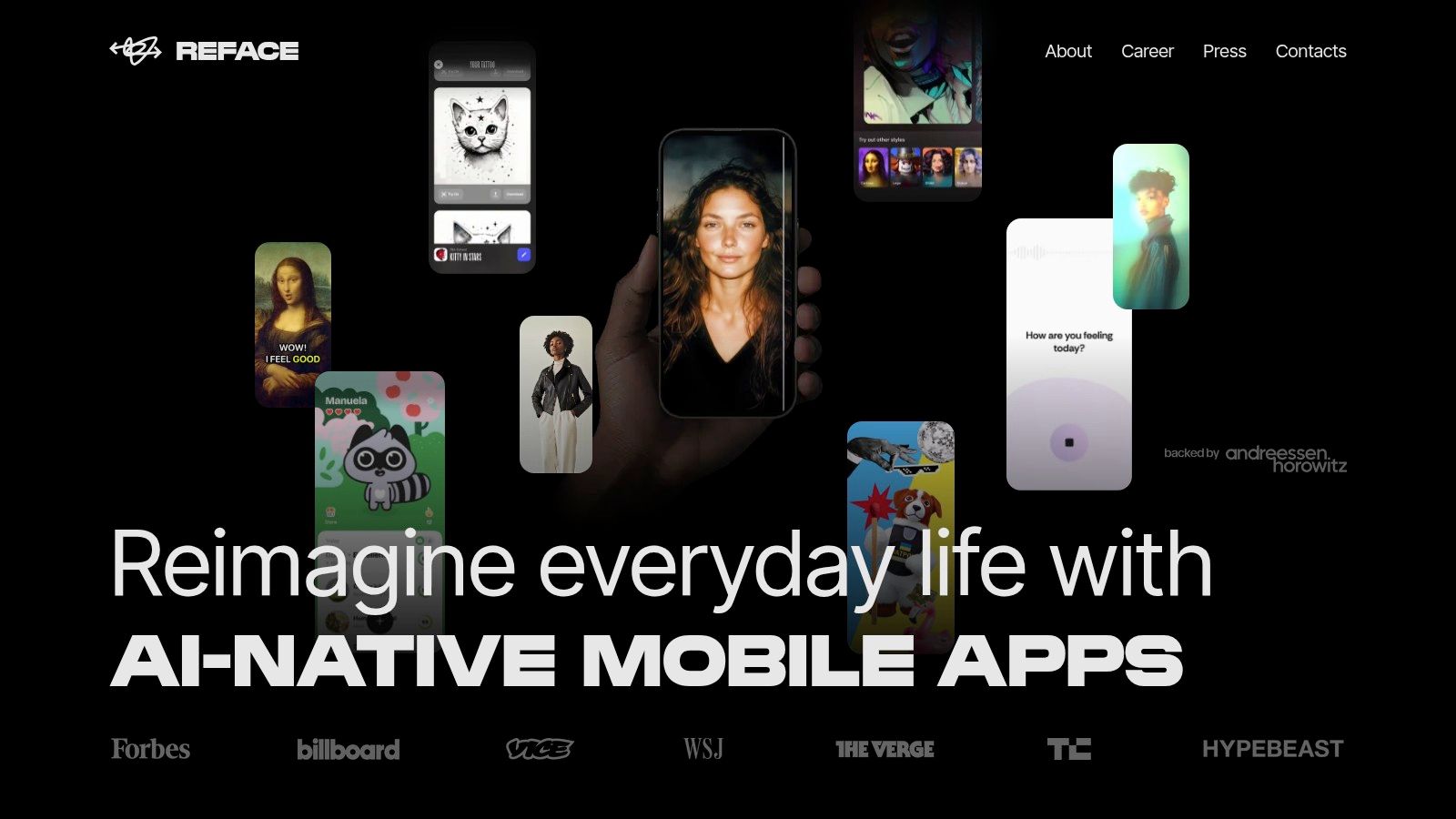
Reface trades control for speed. You cannot direct individual facial movements, build a detailed scene, or establish a repeatable brand system as easily as you can in a studio platform or desktop editor. Export limits, subscription terms, and available features may differ by device and region, so check the current purchase screen before committing.
For quick portrait animation, its preset-first workflow avoids masking, keyframes, and prompt testing. Use another tool for client work that requires exact facial performance, controlled compositing, or consistent exports across a campaign.
Choose Reface for viral-style effects, memes, and informal portrait clips. Before publishing, confirm consent, likeness rights, template permissions, and any export branding. The current product information is available from Reface, while a visual example appears in this Reface app screenshot.
8. CapCut Photo Animation
Need animated stills and a finished social video in the same project? CapCut combines photo motion with a timeline, titles, audio, effects, templates, and publishing formats. Apply a preset to one image, test an image-to-video treatment, then arrange the result with other clips without switching apps.
That setup suits creators building montages, social managers preparing vertical versions, and marketers pairing animated product images with captions. Desktop, web, and mobile access support quick phone edits as well as more deliberate desktop assembly. The trade-off is control: CapCut is built for a complete edit, so its photo-animation workflow can feel less focused than a dedicated motion tool.
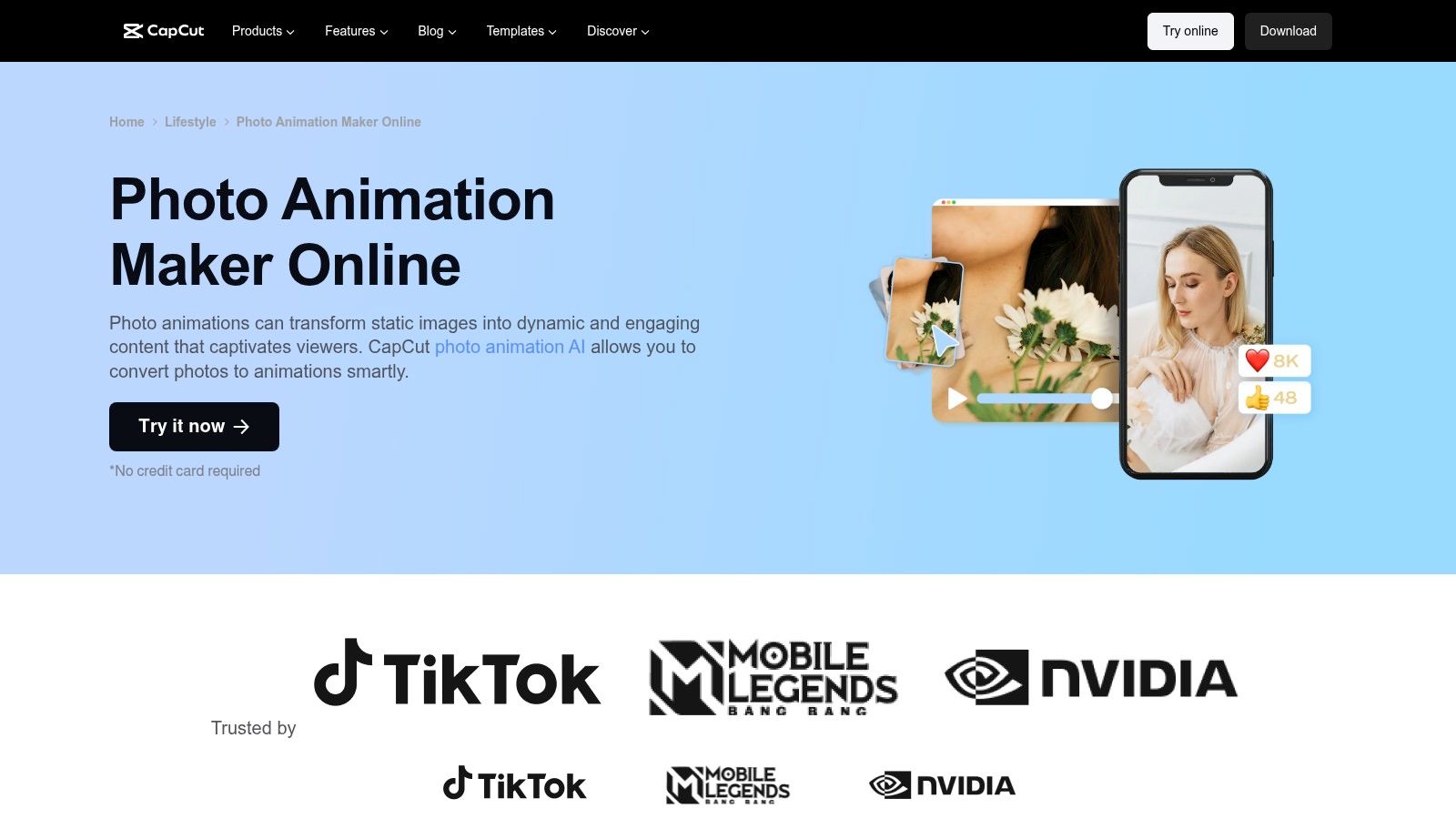
A broader workspace also means more settings to check. Pro features and cloud assets require a paid plan, and pricing or feature access can vary by region and device. Tutorials may show tools that are unavailable in your version, so test the actual workflow before adopting it for recurring production.
Choose CapCut when animated pictures are part of a larger deliverable with sound, typography, transitions, or multiple aspect ratios. Motionleap or PhotoMirage may be quicker for a controlled water loop or isolated image effect. CapCut fits the full short-form edit.
- Choose it for: Social videos built around animated stills.
- Value most: Timeline editing and cross-platform project work.
- Check first: Regional access, export settings, cloud storage, and Pro restrictions.
Review the current CapCut photo animation tools before committing to a recurring workflow.
9. Kaiber
Kaiber suits creators who want a still image to become a stylized motion sequence, rather than a restrained loop. Its project workflow supports image-to-video generation, style direction, model selection, duration controls, drafts, and repeated iterations. That combination fits music visuals, experimental art, and brand clips built around a transformed look.
The trade-off is fidelity. Kaiber may invent movement that was not present in the source image, which gives an art-forward sequence its character. The same behavior can distort product geometry, faces, text, or other brand details that need to stay fixed. It is better suited to expressive image-to-video work than to precise path animation or literal product demonstrations.
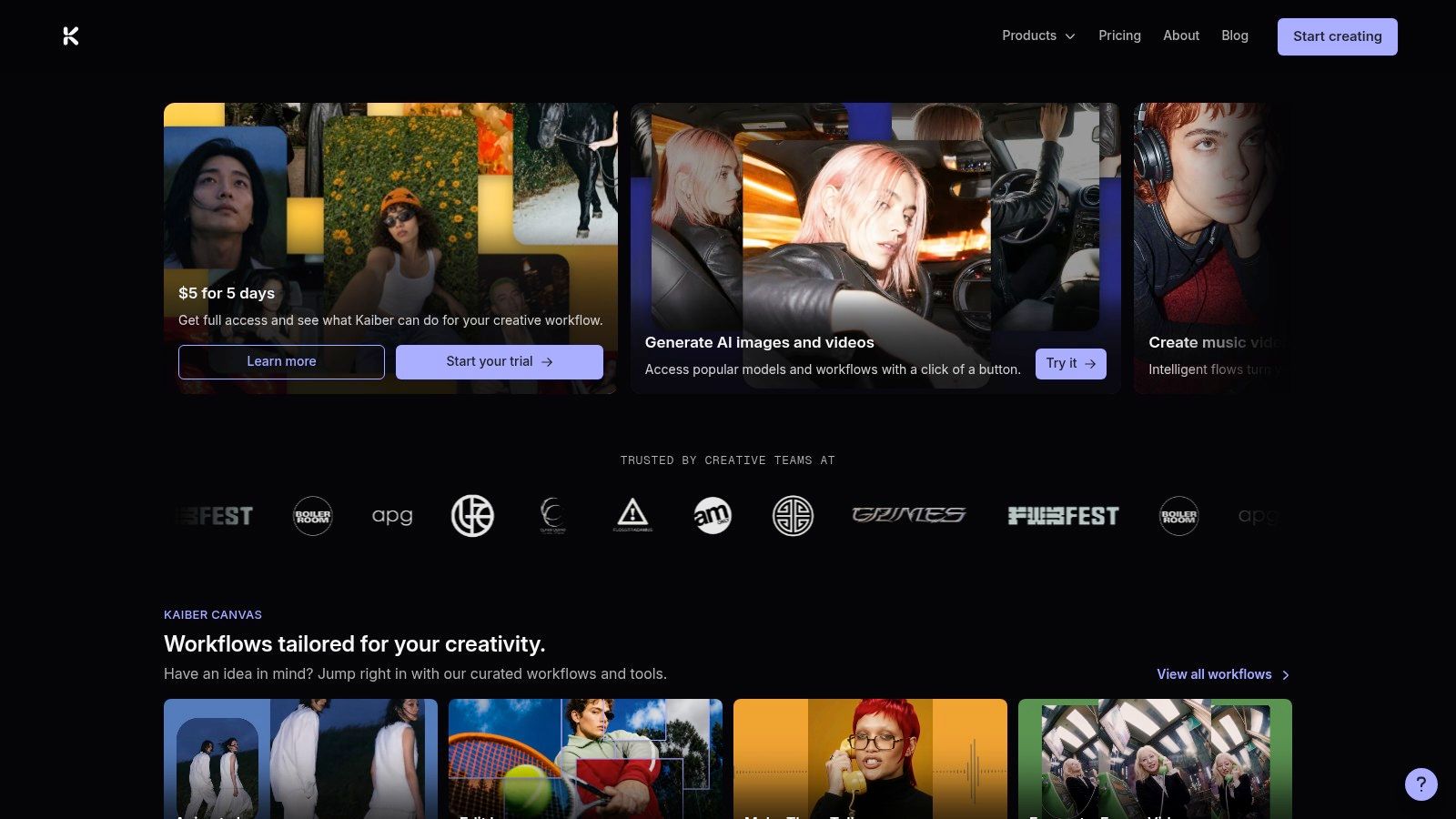
Test the full generation workflow
Credits are consumed according to the selected model and duration, so a promising preview does not show the complete production cost. Test representative images, clip lengths, and output styles before planning a recurring workflow. Compare several generations, because creative variation is part of the result and the expense.
For a practical explanation of how AI video generation works, review the underlying process before setting expectations.
- Choose it for: Music videos, mood pieces, experimental motion, and stylized campaigns.
- Expect: More variation than manual path animation.
- Avoid it for: Precise lip-sync, strict product fidelity, or predictable frame-by-frame movement.
Test the Kaiber platform when the desired result is expressive rather than literal.
10. Runway
Runway is the strongest fit here for a production-oriented image-to-video workflow. It combines modern image-to-video models with motion controls, upscaling, an integrated editor, effects, team features, and a credit system. The value isn't only the first generated clip. It's the ability to iterate, organize, refine, and combine generated material inside a broader creative process.
Runway still requires careful prompting and selection. A high-quality source image helps, but generated motion can introduce distortions, unwanted camera movement, or changes to details you expected to remain fixed. For commercial work, review every frame and treat the first generation as a draft rather than a finished shot.

Compare quality with speed and cost
A 2026 independent benchmark found meaningful trade-offs between image-animation models. Seedance 2.5 delivered the most complete animation overall, H3 Max Fast preserved the source image most efficiently, and Gemini Omni Flash produced strong motion but introduced a duplicated ribbon-tail artifact. In that test, H3 Max Fast rendered at 768p in 6 seconds for 40 credits, or $0.40, while Seedance 2.5 took 4 minutes 11 seconds at 720p for 267 credits, or $2.67, and Gemini Omni Flash took 34 seconds at 720p for 130 credits, or $1.30. The comparison is published in this independent image-animation benchmark.
That result is useful beyond the named models. Latency, cost per clip, and artifact risk can matter more than maximum motion quality when a team needs many iterations. Runway's credit-metered workflow can become expensive if every concept requires repeated generations, so test a representative image before you purchase. Plan names and allowances may change, which is why you should check the current Runway plans and image-to-video tools.
For a broader comparison of current options, see this guide to the best AI video-generation apps.
Top 10 Apps That Animate Pictures, Feature Comparison
| Tool | Core features ✨ | UX / Quality ★ | Value / Price 💰 | Target audience 👥 | Standout / USP 🏆 |
|---|---|---|---|---|---|
| Motionleap | Motion paths, anchors/freeze, sky & water packs, camera FX ✨ | ★★★★, fast, mobile‑first | 💰 Freemium → subscription for full features | 👥 Social creators, mobile editors | 🏆 Quick, eye‑catching cinemagraphs |
| Plotaverse (Plotagraph) | Plotagraph flow tools, masking, community sharing ✨ | ★★★★, polished loop workflows | 💰 Subscription required for pro tools | 👥 Motion‑art creators, community sharers | 🏆 Purpose‑built motion‑art + active community |
| PhotoMirage | Motion arrows, anchor tools, MP4/GIF/WMV export ✨ | ★★★, stable desktop workflow | 💰 Trial + perpetual license or paid upgrades | 👥 Desktop users, format‑control editors | 🏆 Desktop stability + perpetual license option |
| D‑ID Creative Reality Studio | Photo→talking‑head (text/audio), avatars, API ✨ | ★★★★★, high‑quality lip‑sync | 💰 Paid tiers; watermarks on lower plans | 👥 E‑learning, explainers, brands, devs | 🏆 Realistic lip‑sync + API automation |
| MyHeritage Deep Nostalgia / LiveMemory | Face animation presets, web/mobile access ✨ | ★★★★, extremely simple for portraits | 💰 Free limited use; paid for full access | 👥 Genealogy users, casual animators | 🏆 Easiest path for animating ancestor photos |
| TokkingHeads (Rosebud AI) | Text/audio facial animation, live puppeteering ✨ | ★★★★, very fast prototype results | 💰 Freemium / credit options | 👥 Meme makers, quick social clips | 🏆 Live "magic motion" puppeteering |
| Reface | Face swap templates, portrait animation, trend updates ✨ | ★★★★, ultra simple UX | 💰 Freemium → subscription for pro | 👥 Casual users, viral content creators | 🏆 Large template library for viral memes |
| CapCut Photo Animation | One‑click templates, image→video, cross‑platform editor ✨ | ★★★★★, deep toolset, editing + publish | 💰 Free base; paid cloud/assets in regions | 👥 Social editors who need full edits | 🏆 End‑to‑end editor with image‑to‑video flow |
| Kaiber | Still→stylized video, model options, project drafts ✨ | ★★★★, creative, art‑forward results | 💰 Credit‑based consumption per render | 👥 Brand/music videos, experimental creators | 🏆 Stylized, music‑aligned image→video output |
| Runway | State‑of‑the‑art image→video models, editor, upscaling ✨ | ★★★★★, production‑grade fidelity | 💰 Credit‑metered; team plans available | 👥 Production teams, VFX editors | 🏆 High‑fidelity image→video + integrated editor |
Choose the Animation Workflow That Fits
Start with the movement you need, not the app name. If the brief says “make the water move while the boat stays still,” you need path controls, anchors, and masking. Motionleap is the fastest mobile route, Plotaverse gives motion-art creators a deeper path-based workflow, and PhotoMirage is the sensible Windows desktop option when export formats and a traditional editing environment matter.
Portrait animation is a separate category. MyHeritage Deep Nostalgia is the easiest fit for family portraits and historical photographs. TokkingHeads works for quick expressive experiments, memes, and character tests. Reface is better when a ready-made social template matters more than precise control. D-ID belongs in a more structured workflow where a photograph needs to deliver a script through lip-sync, voices, and possibly API automation.
Choose the narrowest tool that matches the deliverable. More AI doesn't automatically mean more control, and more features don't guarantee a cleaner export.
Use CapCut when animation is only one component of a finished edit. Its timeline, audio, titles, effects, templates, and cross-platform access make it practical for social campaigns and montages. You may spend more time navigating a broad editor than you would in a dedicated animation app, but you won't need to assemble the final video somewhere else.
For stylized or cinematic image-to-video generation, compare Kaiber and Runway. Kaiber is a natural fit for art-forward motion and music visuals, while Runway is better suited to teams that need generation, editing, iteration, and production controls in one workspace. Neither should be judged from a single impressive preview. Generative output can change important details, and credit-based workflows make repeated testing part of the budget.
Before you commit, run the same representative photo through the tools you're considering. Check the points that affect delivery:
- Export quality: Confirm resolution, aspect ratio, file type, frame consistency, and whether the result is suitable for the destination platform.
- Watermarks and limits: Test the plan you can afford, not only the free preview.
- Reliability: Look for failed generations, crashes, export errors, and slow queues during a normal working session.
- Rights and privacy: Review how the service stores uploaded portraits, whether your team has permission to use each face, and whether the output fits your commercial requirements.
- Unit economics: Estimate subscription or credit use from realistic iterations, not from one successful generation.
Market traction doesn't guarantee a stable workflow. OpenArt announced 8 million monthly active users around its image and video creative platform, while Motionleap's listing shows a 4.7 out of 5 rating alongside recurring complaints about crashes, export failures, and features moving behind a paywall. Those details are reported in coverage of OpenArt's creative platform and Motionleap user feedback. The practical lesson is simple. Evaluate failure rate, successful export, and monetization friction alongside visual quality.
Writingmate can be useful when you want to compare multiple image and video models in one workspace. Its Video workspace supports uploading an image and selecting a supported model for image-to-video generation, while side-by-side comparison can reduce the need to maintain separate accounts for every experiment. It doesn't replace Motionleap's manual looping controls, D-ID's specialized avatar workflow, or every feature in Runway. It's best treated as a model-comparison and general creative workspace within a broader production process.
Choose one tool for a tightly defined first project. Animate one scenic scene, one portrait, or one product image, then inspect the result on the platform where it will appear. That test will tell you more about control, artifacts, export quality, and workflow friction than a long feature list.
Writingmate brings text, image, video generation, web research, file analysis, and multi-model comparison into one workspace. For this topic, upload a still image, compare supported image-to-video models, and refine the prompt without switching between separate AI services. Visit Writingmate to test the workflow and decide whether it fits your animation process.
Frequently Asked Questions
Sources
- group montage and interview tips
- Motionleap's app listing and store estimates
- Motionleap on the App Store
- official Plotaverse site
- PhotoMirage's product page
- creating an animated image
- D-ID Creative Reality Studio
- overview of AI photo-animation tools
- MyHeritage Deep Nostalgia
- TokkingHeads web experience
- Reface
- Reface app screenshot
- CapCut photo animation tools
- how AI video generation works
- Kaiber platform
- independent image-animation benchmark
- Runway plans and image-to-video tools
- best AI video-generation apps
- Writingmate
Written by
Artem Vysotsky
Ex-Staff Engineer at Meta. Building the technical foundation to make AI accessible to everyone.

Reviewed by
Sergey Vysotsky
Ex-Chief Editor / PM at Mosaic. Passionate about making AI accessible and affordable for everyone.