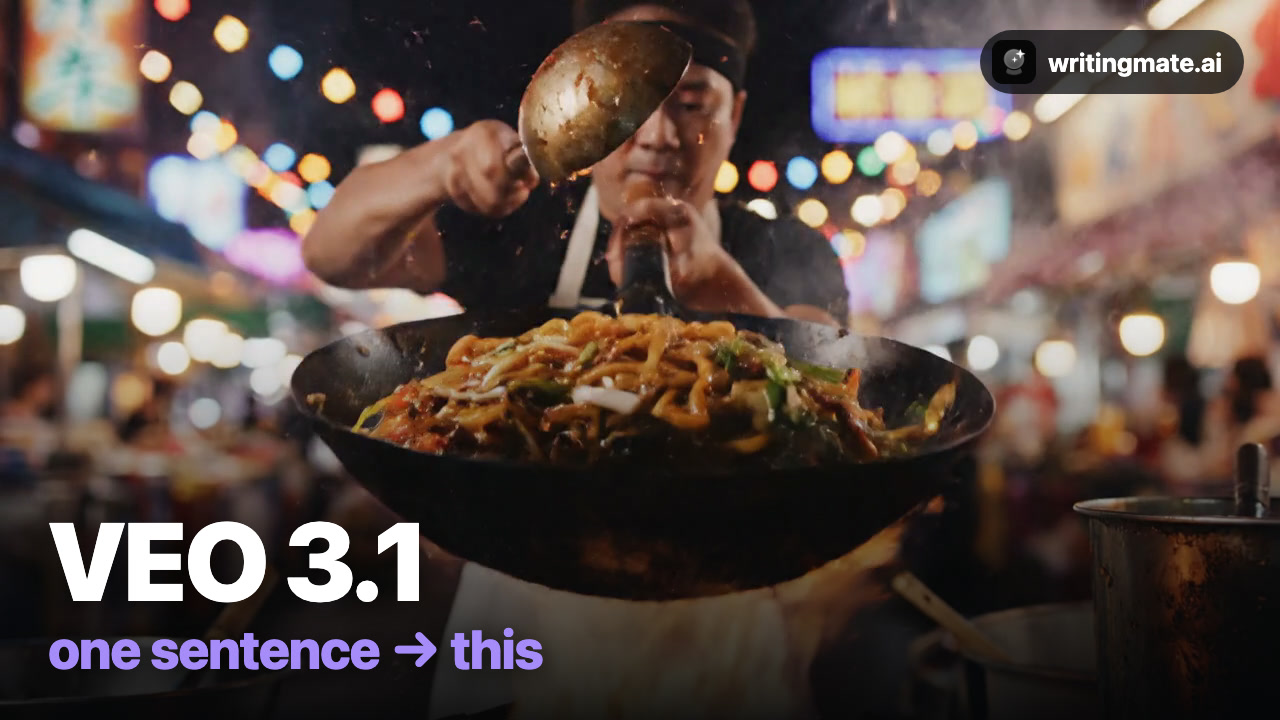
Veo 3.1 is Google's flagship video model, and its superpower is sound: it generates audio, dialogue, and effects together with the picture. In Writingmate you use it without a separate Google subscription.
Every clip in the video below came from one sentence — no editing. Full walkthrough:
The 3-step workflow
- Describe your shot. Open the Video workspace and write one sentence — subject, action, lighting, camera.
- Pick Veo 3.1. Click the model chip and choose it from the list. Set aspect ratio (Wide for YouTube, Portrait for Reels) and length.
- Hit Create. Download the result or run a variation.
What Veo 3.1 is best at
Veo 3.1 is best for shots where sound matters — Veo generates native audio to match the scene.
The exact prompts from the video
A street food chef tosses noodles in a flaming wok at a night market, sparks flying, cinematic slow motion close-up
A jazz drummer plays a brush solo in a smoky club, audience snapping along, warm stage light
3 prompt tips
- Describe the sound — “sizzling”, “crowd snaps” — Veo scores the scene to match.
- Set the light: “warm stage light” or “neon glow” changes everything.
- Keep motion continuous — one flowing action beats a list of cuts.
Prefer the 60-second version? Watch the quick demo.
The other four models
Or read the full roundup: How to make AI videos with all five models.
All five models are included in the Pro plan (3 videos/month) and Ultimate (30/month), next to GPT-5, Claude, Gemini, and Grok for chat.
Veo 3.1 FAQ
Written by
Artem Vysotsky
Ex-Staff Engineer at Meta. Building the technical foundation to make AI accessible to everyone.

Reviewed by
Sergey Vysotsky
Ex-Chief Editor / PM at Mosaic. Passionate about making AI accessible and affordable for everyone.